Dstny ConnectMe
Activity Status & Call Forwarding
Step 1: Changing Your Present State
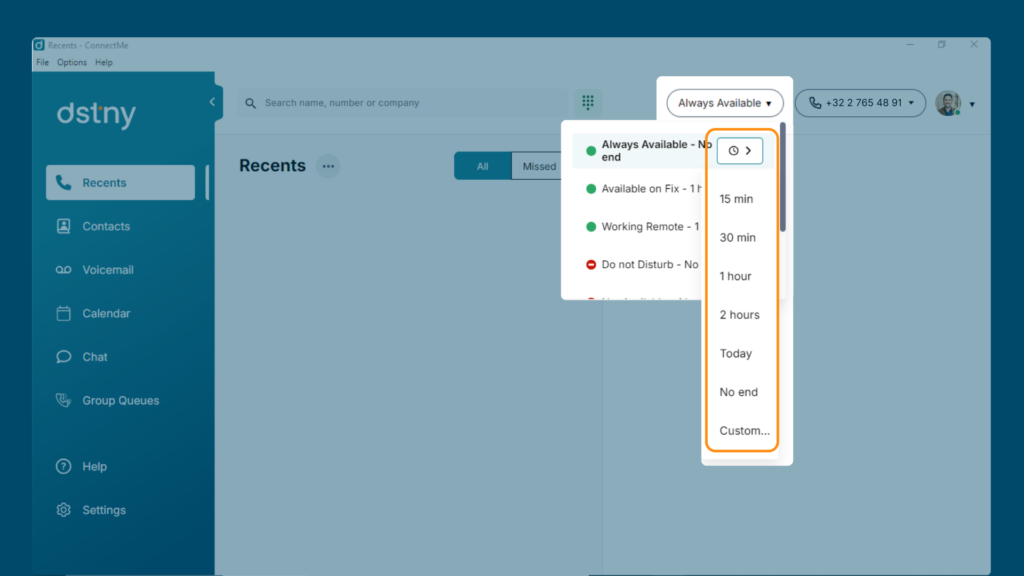
Your present state controls how incoming calls are handled. The available options may vary based on your system settings, but common choices include:
- Available: All linked devices will ring simultaneously.
- Do Not Disturb (DND): Calls will be sent directly to voicemail.
How to Change Your Present State:
- Go to the top bar and select your preferred present state from the dropdown menu.
- If needed, set an end time so your present state will automatically revert after the specified period.
Step 2: Enabling Call Forwarding
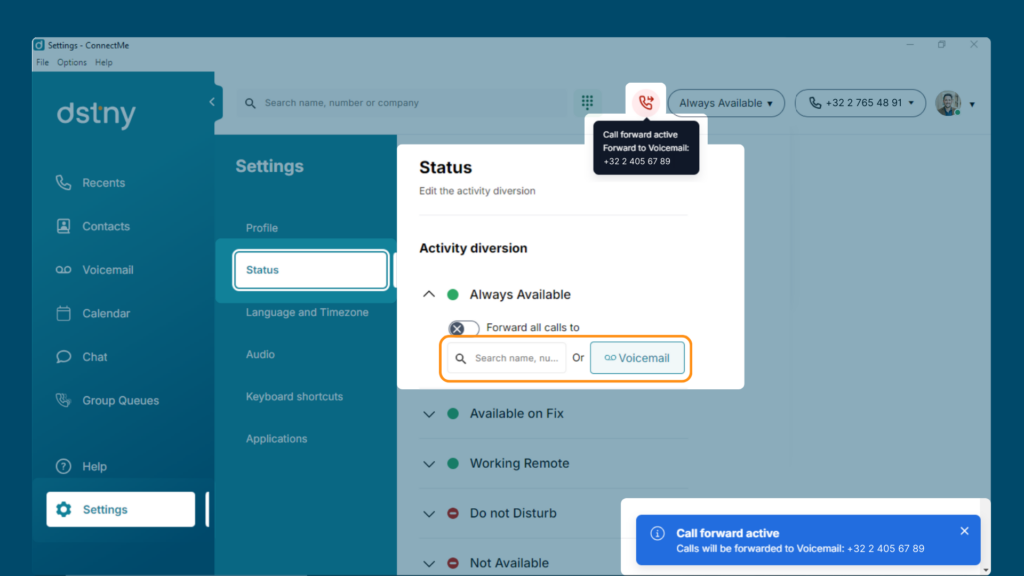
You can control how calls are forwarded based on your selected present state. Call forwarding can send calls to a specific phone number or voicemail.
How to Enable Call Forwarding:
- Navigate to Settings > Status.
- Under Active Diversion, enable call forwarding to your desired phone number or voicemail.
- Once activated, you’ll see an icon in the top bar showing that call forwarding is enabled. Hover over the icon to view the destination number.
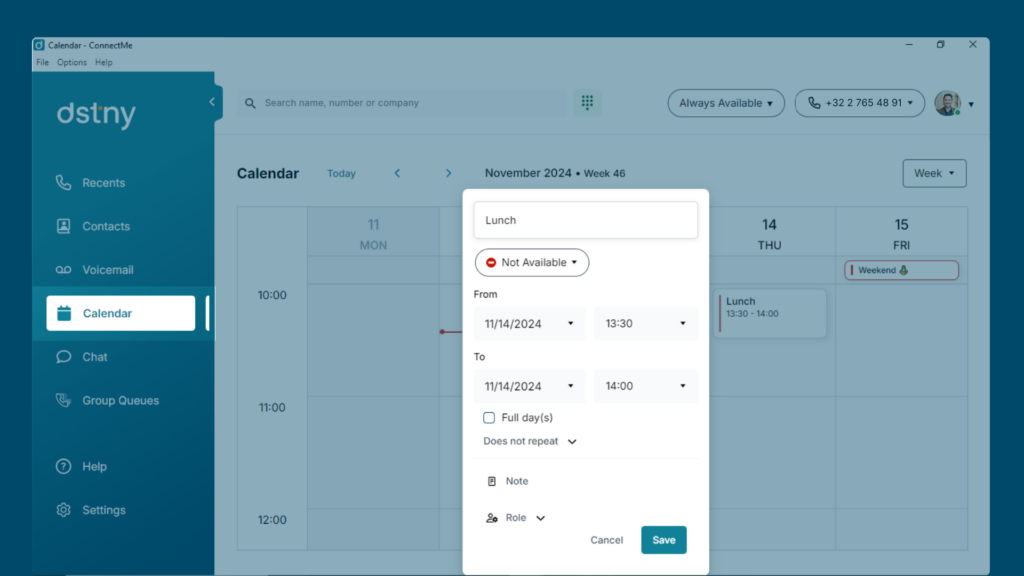
Step 3: Setting Your Future Presence Using the Calendar
Plan your future presence and set specific call handling rules based on your calendar entries. This is especially useful for managing your availability and controlling call flow during different time periods.
How to Set Future Presence:
- Go to the Calendar.
- Create a new entry with the following options:
- Timeframe: Set the start and end times.
- Present State: Select the appropriate present state for this period.
- Note: Add any relevant details for reference.
- Calling Role: Assign a calling role if needed.