Call Handling
Step 1: Choosing Your Device
If you’re using ConnectMe alongside a desktop IP phone or a linked mobile phone, you can select which device to use for making and receiving calls.
How to Configure Your Answer Point:
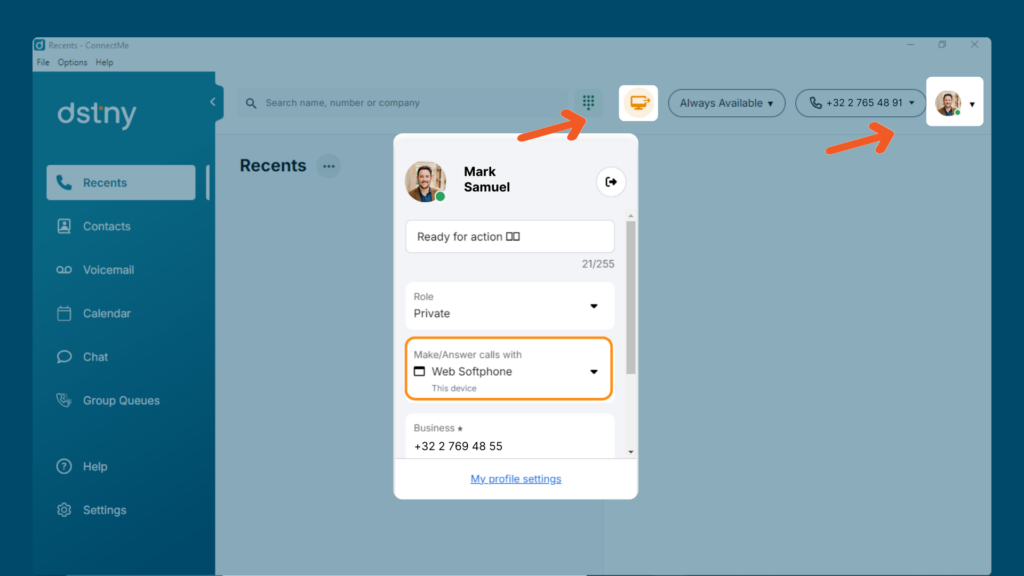
- Go to your profile.
- Select your preferred device from the dropdown menu labeled “Make or answer calls with”.
- If you choose a device other than the ConnectMe Softphone, an icon in the top bar will indicate your selected device.
Step 2: Setting Your Outgoing Caller ID
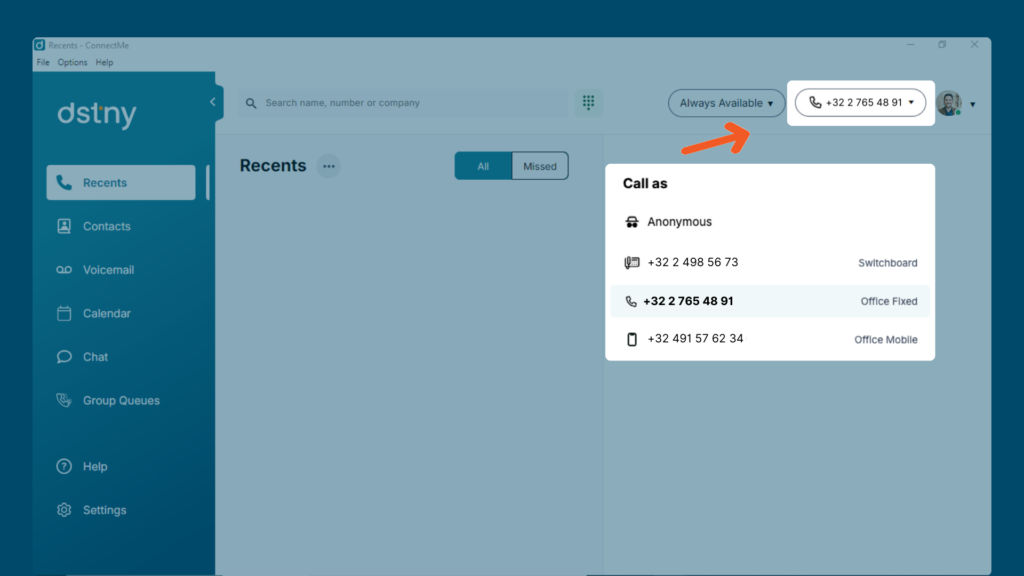
Choose the phone number that will display when making calls. Select the desired number from the Caller ID dropdown menu.
Step 3: Making a Call
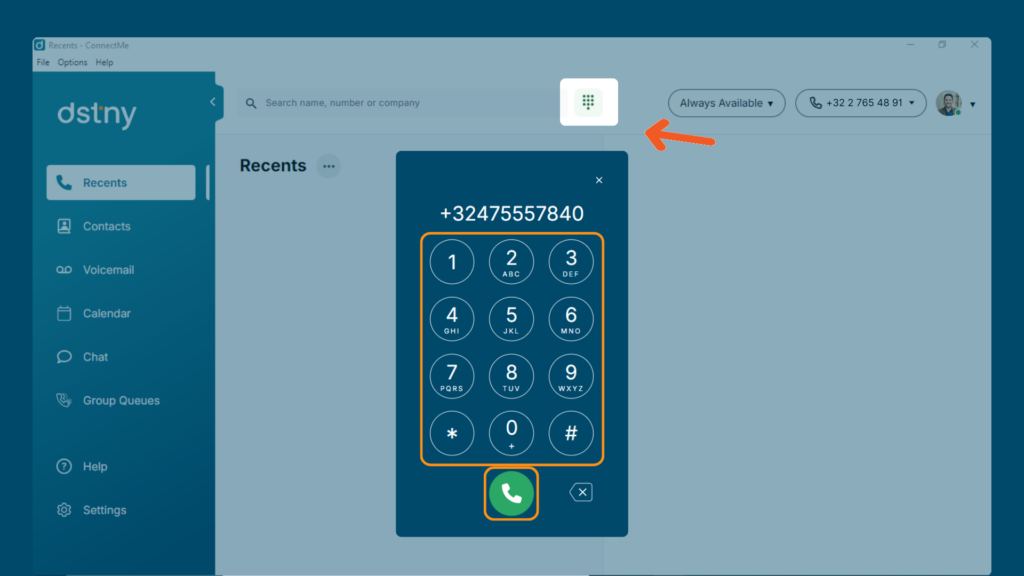
You have multiple ways to start a call:
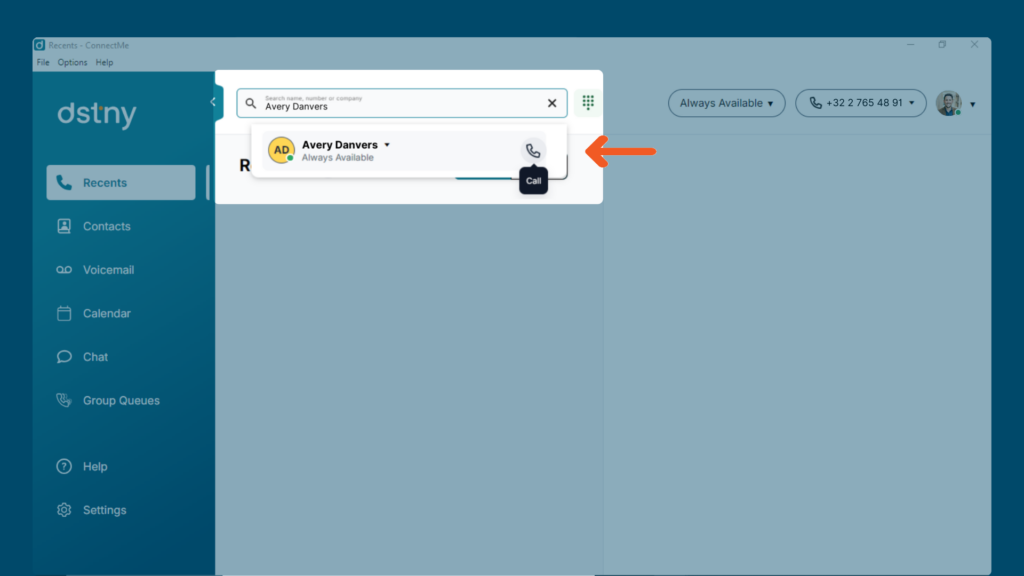
1. Search & Click: Type a number or search for a contact. Hover over the contact and click the phone icon.
2. Dialer: Open the dialer, enter a number, and click the phone icon.
Step 4: Mid-Call Functions
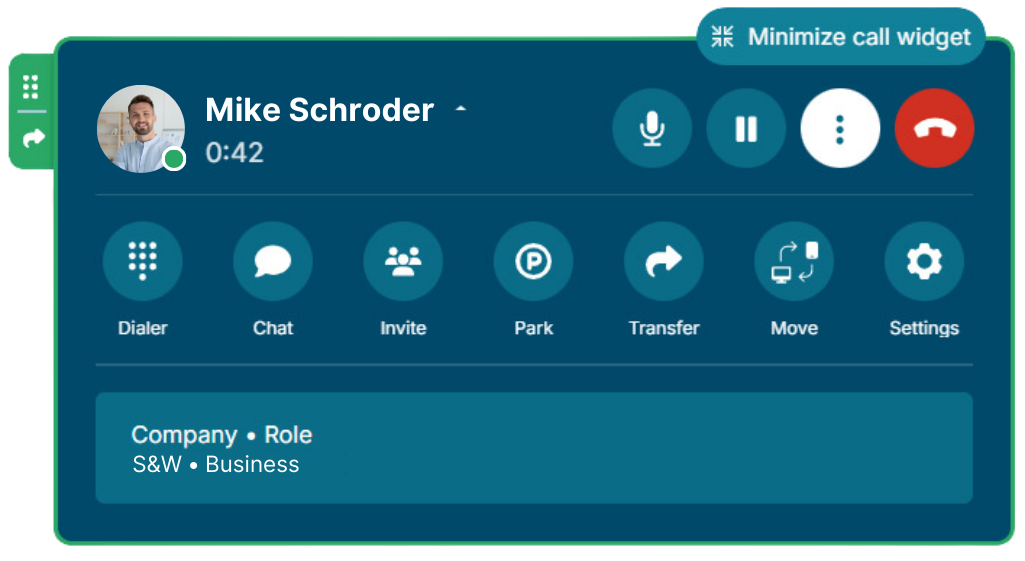
During an active call, you can:
- Mute/Unmute your microphone.
- Hold & Resume: Place the call on hold (caller may hear music). Click again to resume.
- Access More Options: Click the three-dot menu to extend the call widget.
- Reject or End Call.
- Open the Dialer to enter additional digits.
- Start a Chat or SMS the contact.
- Conference Call: Invite additional participants.
- Call Parking: Park the call so a colleague can pick it up.
Step 5: Transferring a Call
There are two ways to transfer a call:
1. Blind Transfer: Sends the call directly to another user.
- Click Transfer > Search for a contact
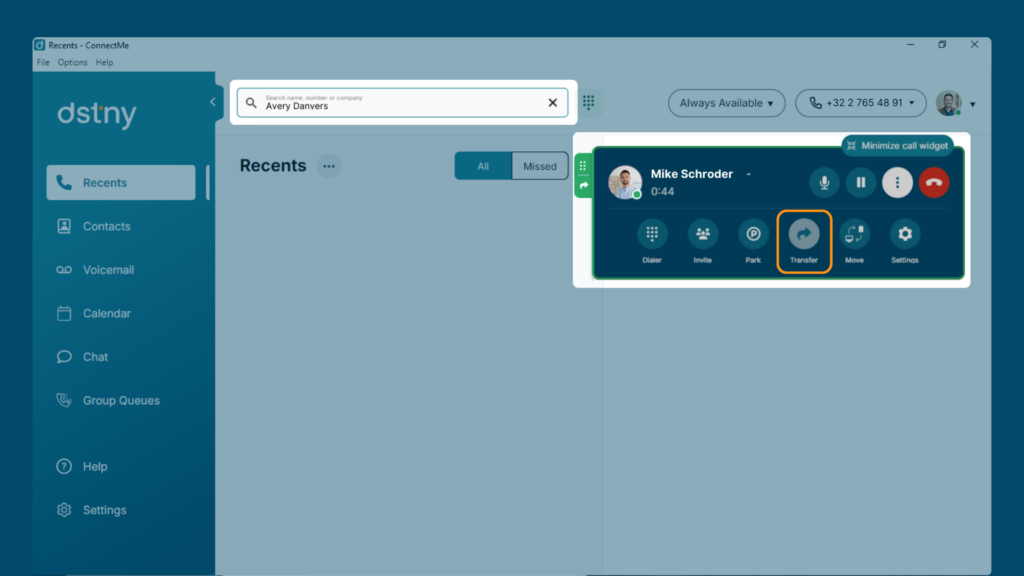
- Drag the call to the contact, or
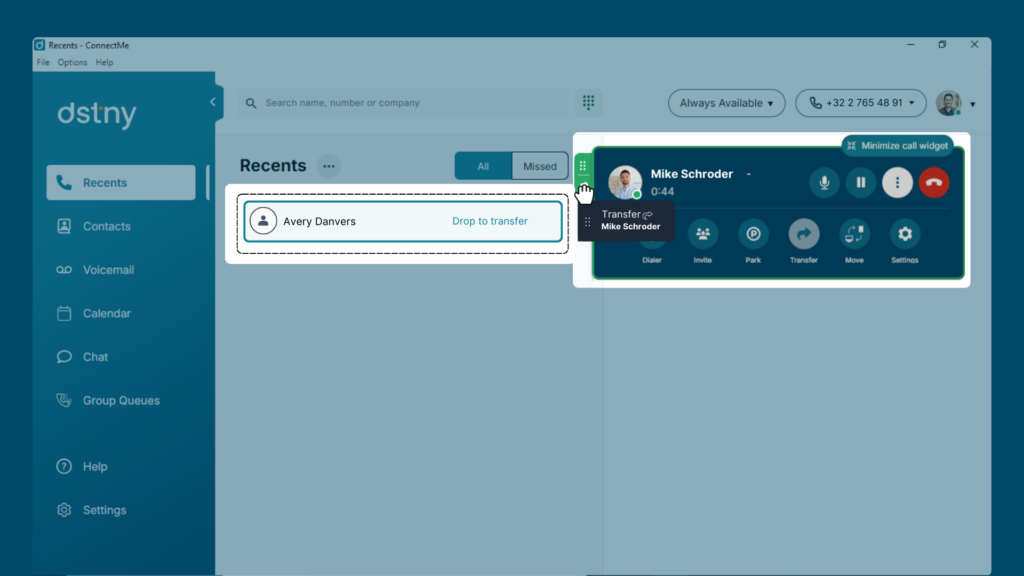
- Click Transfer.
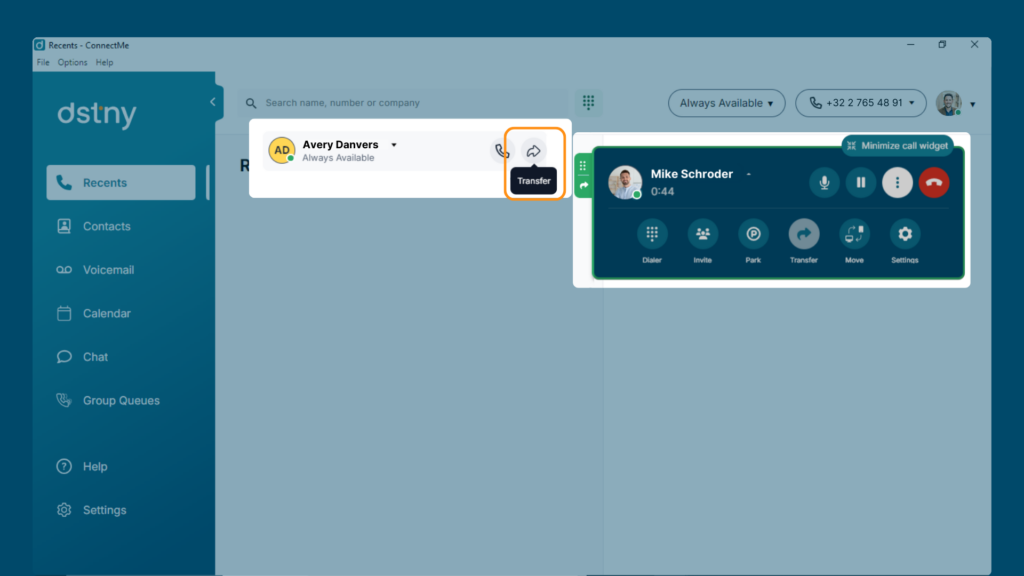
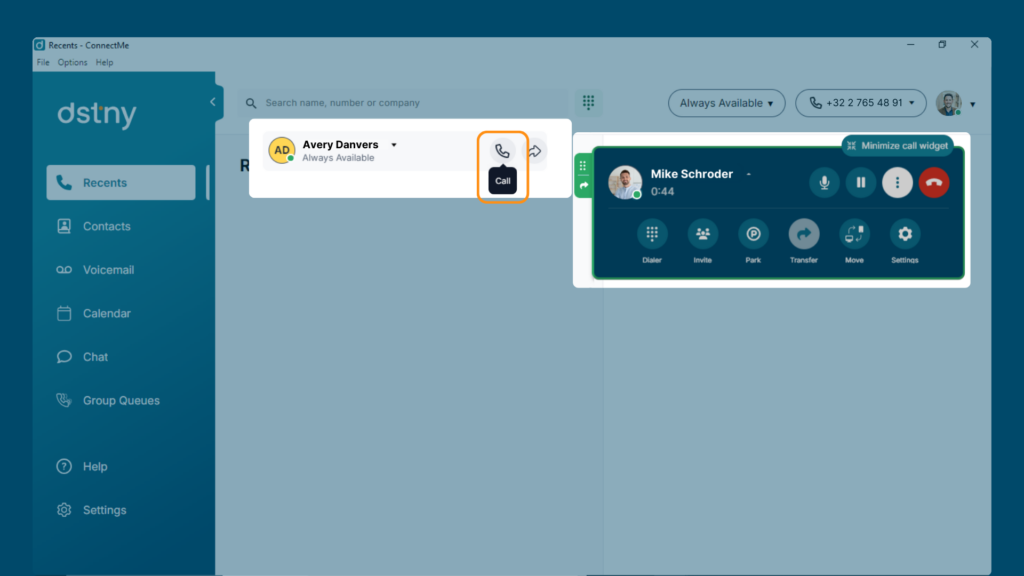
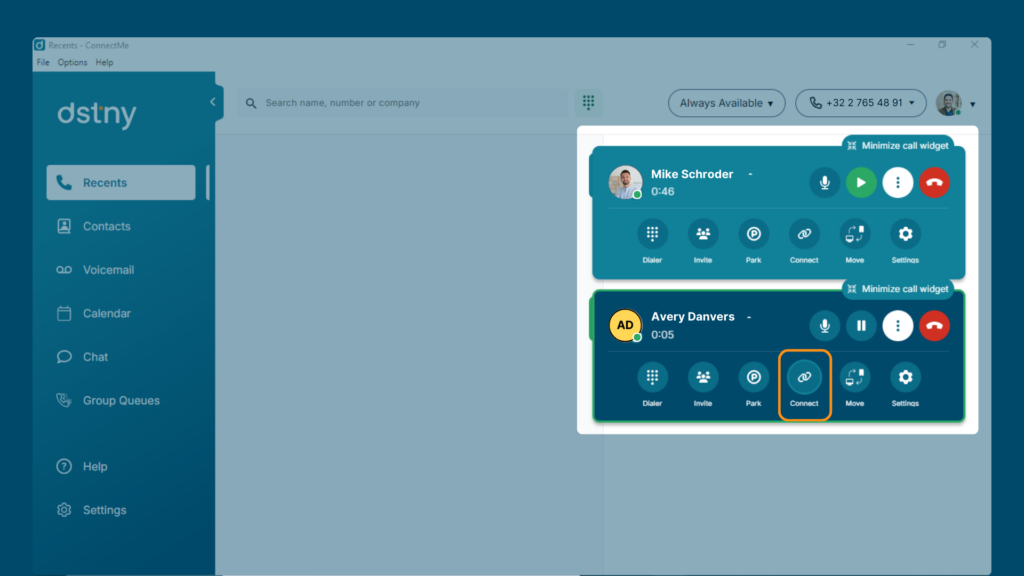
2. Attended Transfer: Speak to the recipient before transferring.
- Call the recipient first.
- When ready, click Connect to complete the transfer.
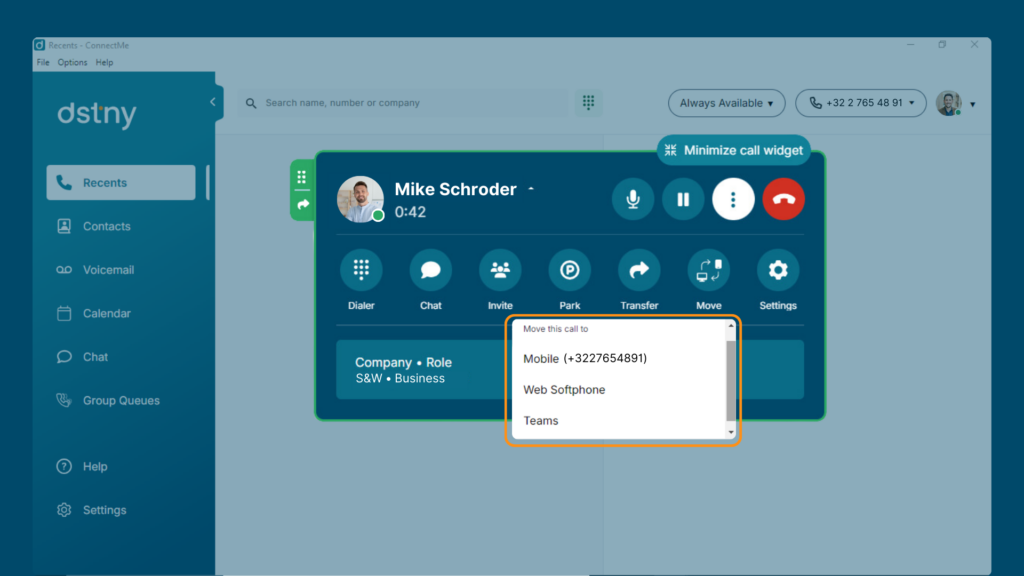
Step 6: Moving a Call Between Devices
Click Move and select the new device. When the new device rings, answer, and the call will seamlessly switch.
Step 7: Adjusting Audio Settings During a Call
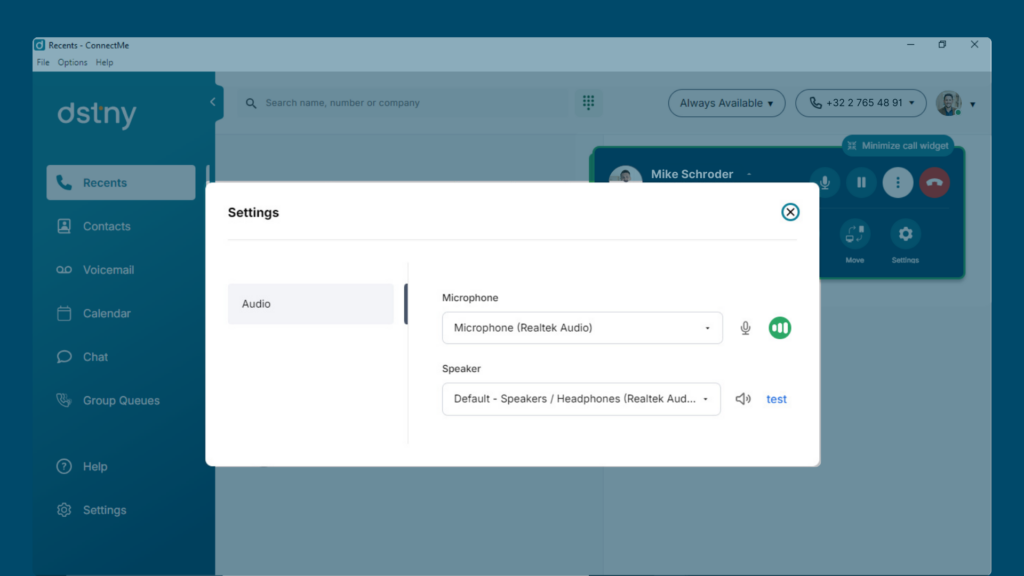
Click Settings during a call to adjust your microphone and speaker options.