Dstny ConnectMe
Group Queues
Step 1: Understanding Group Queues
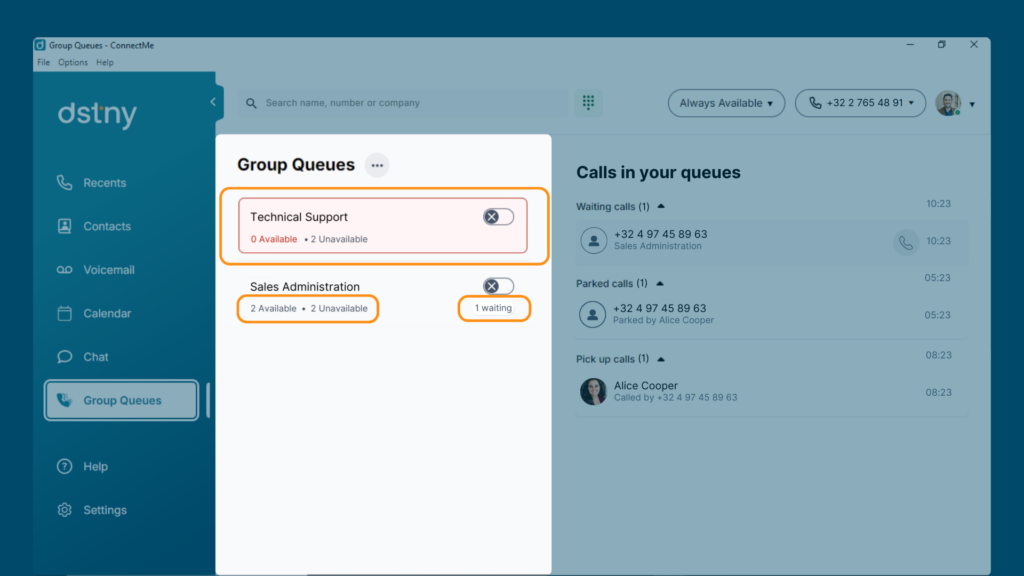
Group queues allow you to manage and access calls that are waiting, parked, or available for pickup, depending on your user permissions. If you’re part of a call distribution group, you’ll see all queues you’re enrolled in.
- Red Highlight: Queues without any logged-in agents are highlighted in red, indicating no one is available to answer calls.
- Agent Status: You’ll also see how many agents are logged in, their availability, and the number of waiting calls.
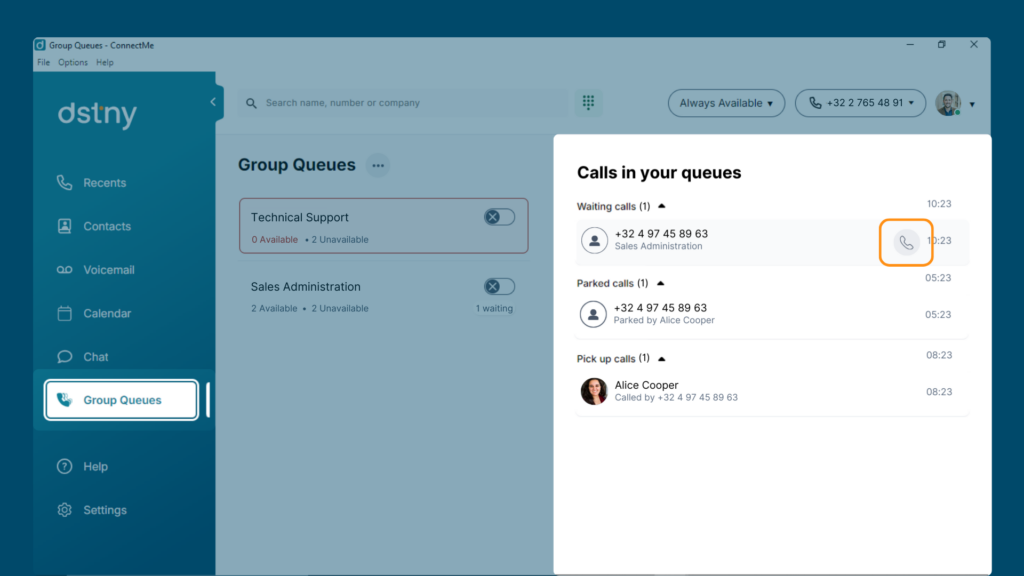
How to Answer Calls from a Queue:
- Hover over the call entry.
- Click the phone icon to answer.
Step 2: Logging in and Out of a Queue
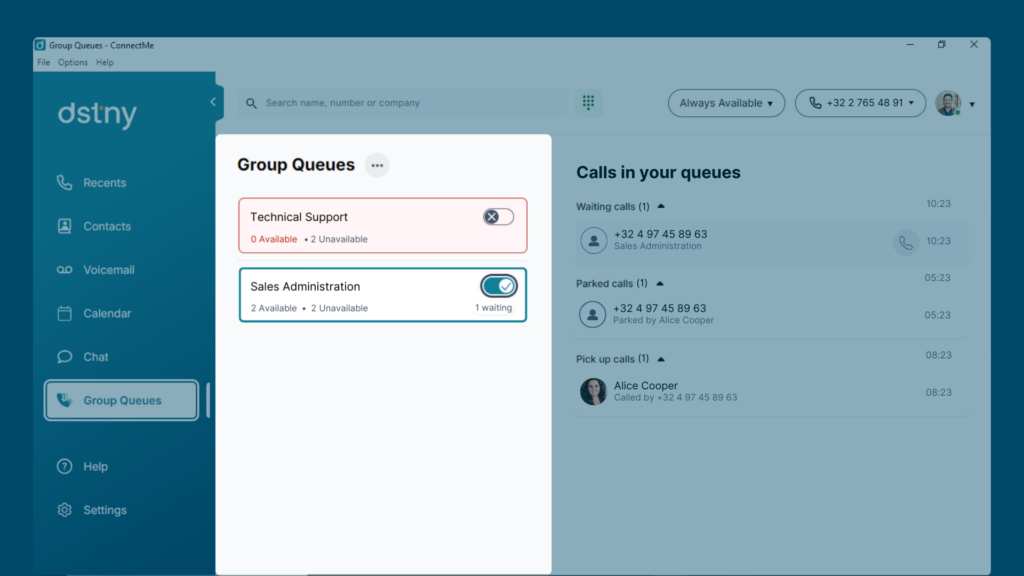
You can log in or out of any queue using the toggle button on the right.
How to Log In/Out:
- Use the toggle button next to the queue entry to log in or out.
Step 3: Navigating Call Distribution Groups
When you’re logged into a queue, you’ll see a breakdown of three tabs: Calls, Agents, and Call History.
- Calls Tab: Displays all calls waiting to be answered, parked calls, and those available for pickup.
- Agents Tab: Lists all agents in the group, showing who is logged in, their availability, present state, and skill level.
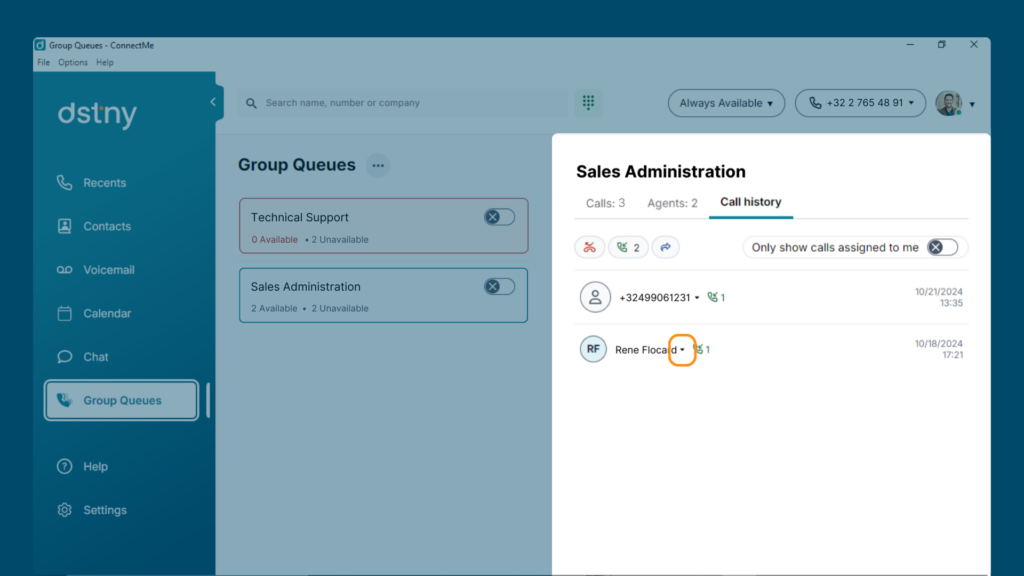
- Call History Tab: Shows all incoming calls for the queue, including missed, answered, and redirected calls.
How to View Call History:
1. Click the arrow next to a contact or number to expand the call details.
2. Edit: Set a handle state or add a note visible to others.
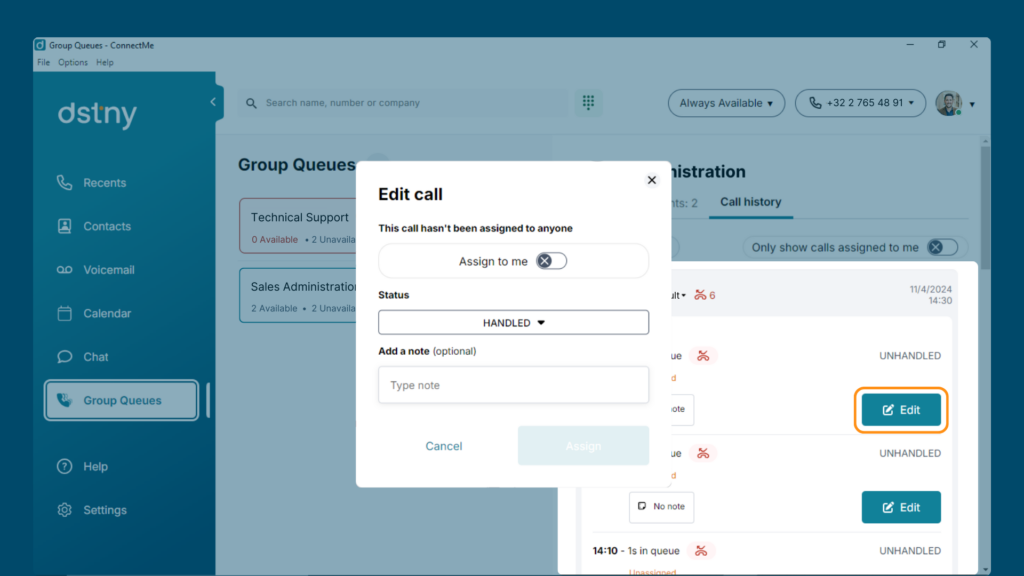
Step 4: Assigning Calls & Filtering
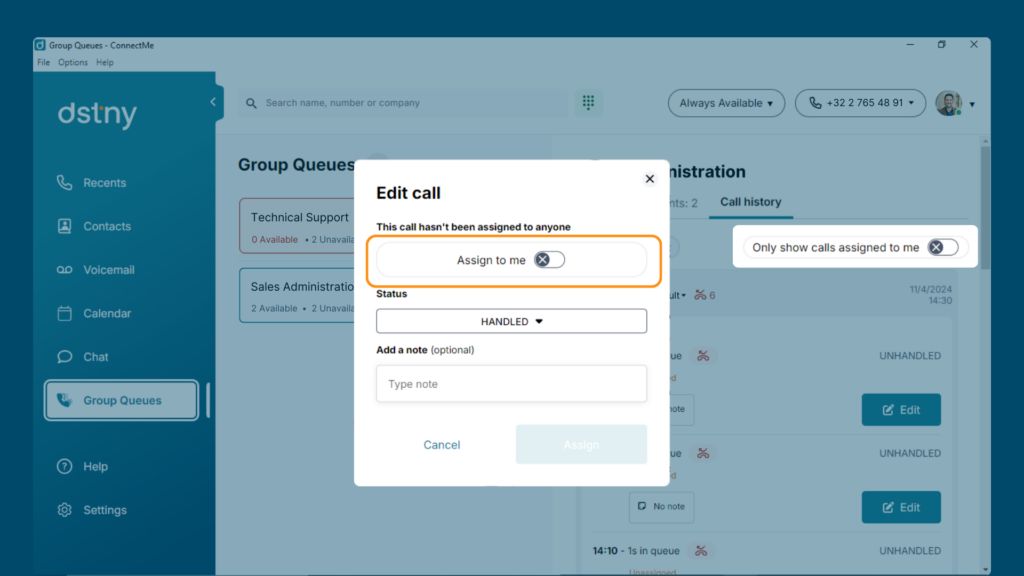
You can assign calls to yourself or another agent and filter the calls to show only those assigned to you.
How to Assign a Call:
- Select a call and choose to assign it to yourself or another agent.
- Use the filter to view calls assigned specifically to you.
Step 5: Supervisor Features in Group Queues
As a supervisor, you have additional functionality to manage group queues:
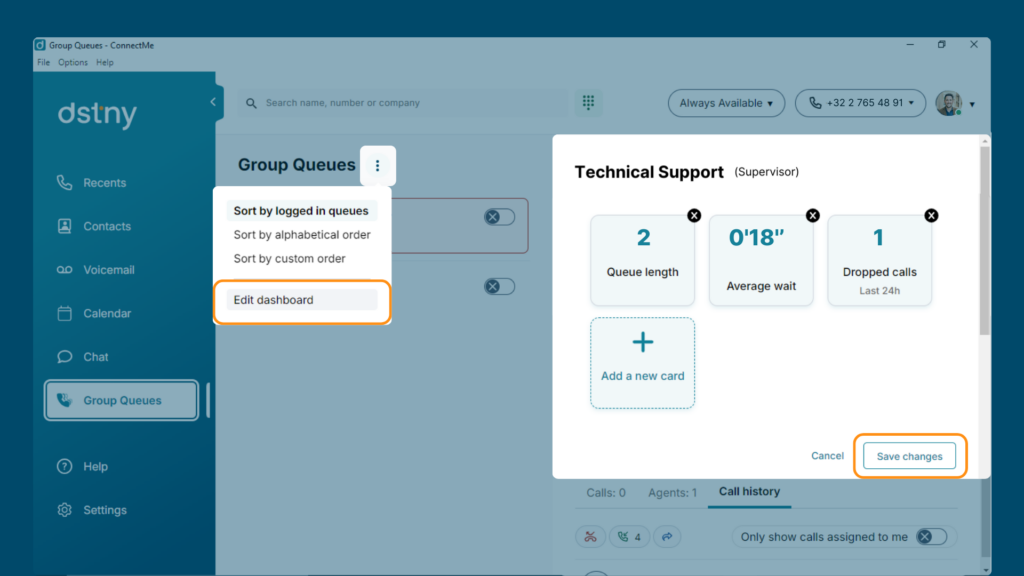
- Monitor Key Metrics: View widgets displaying answered, dropped, missed calls, average wait time, and more.
- Customize Dashboard: Add, arrange, and save widgets to track queue performance.
- Manage Agents: Log agents in and out of queues.
How to Customize the Dashboard:
- Select the call queue.
- Click the hamburger menu and choose Edit Dashboard.
- Add and arrange widgets, then click Save.